
Completed work orders become posted invoices, with no re-keying
Billwright pulls completed work orders from Sage 100 Contractor, builds the invoice line items and totals for you, and posts the finished invoices back into Sage 100 Contractor. The details already exist as data, so no one types them twice.
- Select, review, post
- No re-keying
- Production ready

The invoice already exists. It is sitting in the work order.
In Sage 100 Contractor, completed work orders have to become invoices before you can bill the client. Done by hand, that means reading each work order and retyping its details into an invoice, line by line, even though every one of those details already lives in the system as data.
A work order holds everything an invoice needs: the work done, the quantities, the amounts. Manual invoicing does not create information. It copies it from one screen to another. That copying is slow, and it is where transcription errors creep in.
Billwright removes the copying. Select one work order or many, review the invoice it built, and post. The invoice matches the work order because it was built from it. Billwright is production ready, and we will walk you through it on a call.
Pull completed work orders
Billwright reads completed work orders straight from Sage 100 Contractor.
Select one or many
Invoice a single work order or batch a whole set in one pass.
Lines and totals built for you
Invoice line items and totals come from the work order data, not from retyping.
Post back to Sage
Finished invoices post back into Sage 100 Contractor, so there is no second system to reconcile.
How Billwright runs
Three screens from Billwright, shown with test data.
-
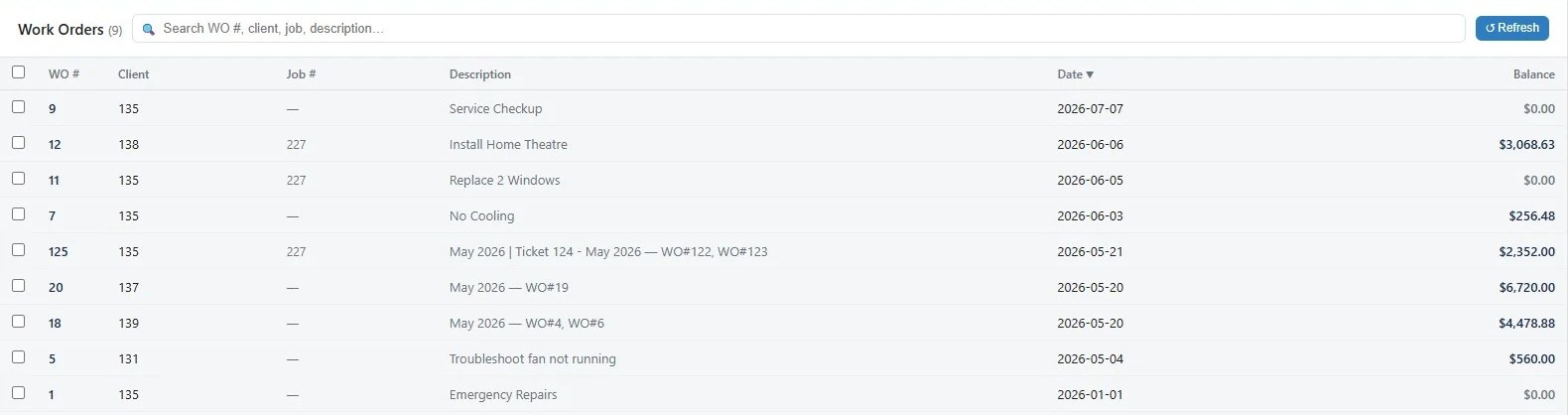
1. Pull completed work orders
Billwright lists the completed work orders waiting in Sage 100 Contractor, with client, job, description, date and balance. Search, sort and tick one or several.
-
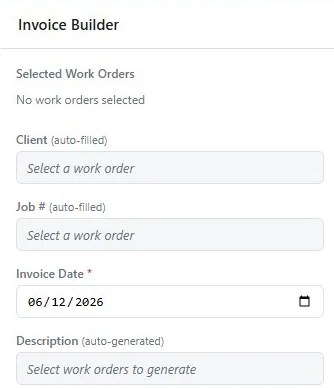
2. Let the builder fill in the invoice
The invoice builder takes the client and job from the work orders you selected and writes the description for you. You set the invoice date.
-
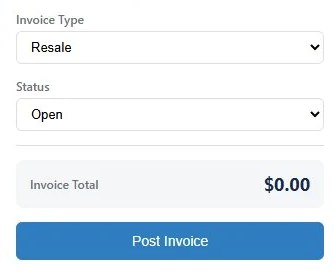
3. Check the total and post
Choose the invoice type and status, check the total built from the work order lines, and post. The finished invoice goes back into Sage 100 Contractor.


Questions people ask
How do I invoice work orders in Sage 100 Contractor?
In Sage 100 Contractor, completed work orders need to become invoices before you can bill the client. Done manually, that means re-keying work order details into an invoice. Billwright automates it: it pulls completed work orders from Sage 100 Contractor, lets you select one or many, builds the invoice line items and totals automatically, and posts the finished invoices back into Sage 100 Contractor.
Can I automate invoicing from work orders?
Yes. If your work orders live in Sage 100 Contractor, the invoice details already exist as data, so re-keying them is unnecessary manual work. Billwright reads completed work orders, builds the invoice lines and totals, and posts the finished invoices back into the system. Select the work orders, review the invoice it builds, and post.
Does Billwright work inside Sage 100 Contractor?
It runs beside it. Billwright is a separate screen installed on your own server. It reads completed work orders from Sage 100 Contractor and posts the finished invoices back, so there is no second system to reconcile.
Can I invoice several work orders at once?
Yes. Select a single work order or a batch, and clear a whole set of completed work in one pass.
Will the invoice match the work order?
Billwright builds the invoice line items and totals from the work order data, not from retyped entries, so the invoice reflects the work order it came from. You review what it built before posting, so anything that needs adjusting is caught before it goes back into Sage 100 Contractor.
See your own work orders become invoices
Show us how you invoice today and we will walk a work order like yours through Billwright on a call, from pull to posted invoice, in our test company.

