
Import and bulk edit Sage Intacct data without fighting the templates
Intacct Workbench brings data into Sage Intacct from Sage 50, Sage 100, Sage 300, QuickBooks or any spreadsheet. Map your columns, review what is new and what is already there, bulk edit, and update from CSV across 18 record types.
- Column mapping, not fixed templates
- Review before posting
- 18 record types

Your file stays as it is. The tool does the matching.
Intacct's standard import templates demand that your CSV match their exact column layout, and they reject files that do not conform. So you reformat, retry and reformat again, every period. And when you need to change one field across hundreds of records, there is no simple built-in way to do it.
Intacct Workbench flips the usual flow. You do not force your file into a fixed column order; you map your columns to Intacct's fields. Before anything posts, it shows you which records are new and which already exist in Intacct, so you import only the rows you tick. A results file then shows exactly what posted and what needs a fix.
Bulk editing is the other half. Select many records and apply an edit directly, or export the list, fix the values in Excel and update from CSV. Records in use can be deactivated instead of deleted.
Column mapping
Match your spreadsheet's columns to Intacct's fields. No reshaping your file to fit a template.
New and existing, side by side
See which records are new and which already exist before posting, and import only the rows you select.
Bulk edit and update from CSV
Change one field across many records directly, or export, fix in Excel and update from CSV.
18 record types
Vendors, customers, AP bills, AR invoices, projects, GL accounts, employees, items and more.
Sources it reads
Intacct Workbench imports from the systems businesses are leaving or running beside Intacct, so it works for both a partial migration and an ongoing feed.
- Sage 50
- Sage 100
- Sage 300
- QuickBooks
- Any CSV or Excel file
What you see in Intacct Workbench
Three parts of the Intacct Workbench screen, connected to a Sage Intacct demo company.
-
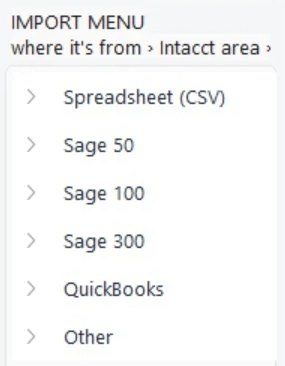
Start from where the data comes from
Pick where the data came from (a spreadsheet, or an export from Sage 50, Sage 100, Sage 300 or QuickBooks), then the Intacct area and the record type.
-
Every action in one place
Import CSV, update from CSV, refresh from Intacct and export on the top row. Filter, select, bulk edit and deactivate on the second.

-
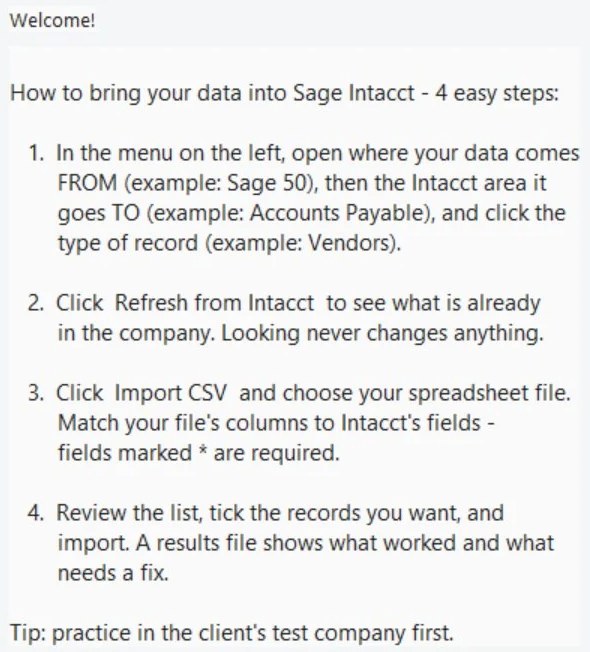
Plain steps on screen
Whoever runs the import sees the four steps in the app itself. Looking at what is already in Intacct never changes anything.


How an import runs
Open the record type
Pick the Intacct record you are importing, then click Import CSV.
Map columns
Match your spreadsheet's columns to Intacct's fields once, and reuse the mapping next time.
Review
See new and existing records, and tick only the rows you want to import.
Import and check
Post the selected rows. A results file shows exactly what landed and what needs a fix.
Questions people ask
How do I import a CSV into Sage Intacct without using the templates?
Intacct's standard import templates require your CSV to match their exact column layout and reject files that do not conform, which leads to repeated reformat-and-retry cycles. The alternative is a tool that maps your columns to Intacct's fields instead of forcing your file into a fixed shape. Intacct Workbench works this way: open the record type, click Import CSV, match your columns to Intacct's fields, review which records are new and which already exist, and import only the rows you tick. A results file shows exactly what posted and what needs a fix.
Can I bulk edit or mass update records in Sage Intacct?
Sage Intacct has no simple built-in way to change one field across many records at once, so consultants often fall back on export and re-import. Intacct Workbench gives you two cleaner paths: select multiple records and apply a bulk edit directly, or export the list, correct the values in Excel and update from CSV. It covers list records such as vendors, customers, projects, GL accounts, employees and items, and records in use can be deactivated instead of deleted.
What is the fastest way to import data into Sage Intacct?
A direct connection that maps your columns, not manual template files. Intacct's built-in templates make you export, reformat to match the template, import and fix rejected rows, a cycle that repeats every period. Mapping your existing columns to Intacct's fields removes the reformatting step, and reviewing new against existing records before posting removes the duplicate clean-up afterward.
Which systems can Intacct Workbench import from?
It reads data exported from Sage 50, Sage 100, Sage 300, QuickBooks, or any CSV or Excel file. That makes it useful both for a partial migration off one of those systems and for an ongoing feed from a system you intend to keep running beside Intacct.
How many record types does it support?
Imports and updates across 18 record types, including vendors, customers, AP bills, AR invoices, projects, GL accounts, employees and items. The same mapping and review flow applies to all of them.
Bring a messy spreadsheet, watch it land clean
Send us a real export from Sage or QuickBooks and we will show it mapped, reviewed and imported into Intacct, with nothing posted until you say so.

